Dan opened his laptop on a Monday morning. A banner ad caught his eye. It read, "All your tools. One login." He almost scrolled past it.
He did not. He had nine software subscriptions. He knew that because he counted them last spring. Each one charged him on a different day. Each one had its own password.
So he clicked. The ad led him to ToolSuite. The promise was bold. More than 50 premium tools. One subscription. Only $29 a month.
Was it real? Dan wanted to know. You probably want to know too. This review explains what ToolSuite offers. It covers how access works, what the tool list includes, and whether the value claims hold up. It also covers who should buy and who should skip it.
What Is ToolSuite?
ToolSuite is a monthly bundle of digital tools. You pay one fee. You get access to a large set of software.
The bundle covers four main areas. These are e-commerce and ad research, AI and automation, design and editing, and content creation.
The ad says "pay once, use them all." That phrase sounds simple. Still, the bill renews every month. Think of it as one subscription that replaces many others.
The Three Core Promises
The ad makes three clear promises. Each one deserves a closer look.
- More than 50 premium tools in one subscription
- One login with one-click access
- Only $29 per month
Each promise sounds easy. Each one also hides a few details. The sections below check them one by one.
How to Get Access Without Losing Your Patience
The ad says access takes two minutes. Plan for more time on your first setup. The process has several steps, and the browser part takes focus.
The ad shows three steps. Here is how each one works.
Step 1: Join the Discord and Claim Your Role
The first step asks you to join ToolSuite's Discord community. Discord is a chat app. Some software sellers use it to manage customers.
You choose the Discord account you want to use. Then you click "Claim Access." Create or log into your Discord account first if you do not have one.
Step 2: Install the AutoLogin Browser Extension
The second step asks you to download a browser extension. The guide calls it AutoLogin. It shows a username and a password. It also asks you to generate a verification code.
The guide includes a warning about a monthly limit on generated codes. Read that warning before you start. Plan your sessions around it.
This step needs extra care. A tool that handles logins needs your trust. The security section below explains how to protect yourself.
Step 3: Open the Tool Dashboard
The third step opens the dashboard. It shows a grid of tool tiles. A search bar sits at the top. Category filters help you narrow the list. A support button appears in the corner.
Click any tile to open that tool. Finding a tool takes seconds, not minutes. That part of the design works well.
What Tools Are in ToolSuite?
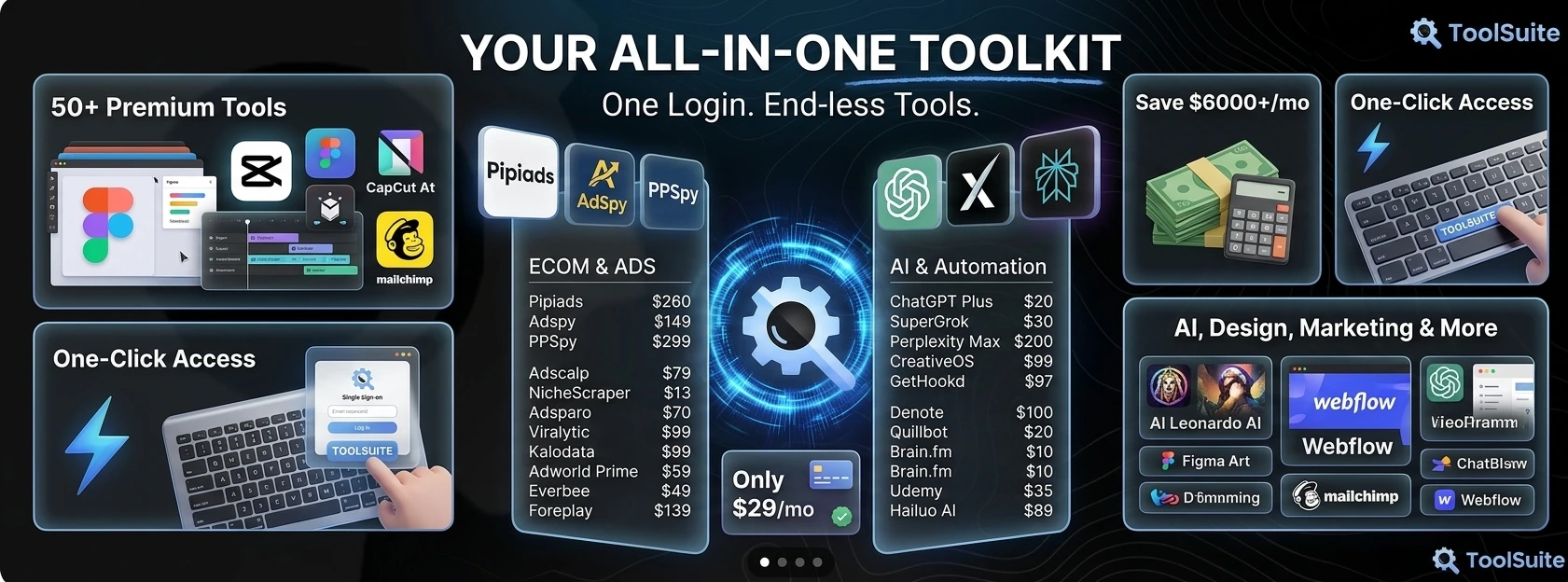
The screenshot lists 52 tool entries. Some names repeat. Some prices are hidden. Even so, the list shows where the bundle focuses.
The prices below come from the screenshot. Prices change often. Check the live pricing page before you buy.
E-Commerce and Ads Tools
This group serves store owners and ad buyers. It includes product research and ad spy tools.
- Pipiads (limited access): $260
- Adspy: $149
- PPSpy: $299
- Adscalp: $79
- NicheScraper: $13
- Adsparo: $70
- Viralytic: $99
- Kalodata: $99
- Adworld Prime: $59
- Everbee: $49
- SellTheTrend: $39
- Anstrex: $139
- Foreplay: $99
- Helium10: $129
This group holds the highest prices in the bundle. Dropshippers and ad buyers often rely on these tools. Other users may never open them.
AI and Automation Tools
This group covers chat assistants, writing helpers, and automation software.
- ChatGPT Plus: $20
- SuperGrok: $30
- Perplexity Max: $200
- CreativeOS: $99
- GetHookd: $97
- Denote: $100
- Quillbot: $20
- Brain.fm: $10
- Udemy: $35
- Hailuo AI: $89
- StaticFlow: $49
- Fish Audio: $29
- TrendLab: $59
- ChatBotAI: $19
- Cramly: $15
- Cockatoo: price not visible in the screenshot
Some of these tools overlap. Two chat assistants can handle similar work. Pick the one that fits your habits.
Design and Editing Tools
This group helps with visuals, mockups, and video cuts.
- Canva Pro: $15
- Figma: $16
- Picsart: $10 (listed twice)
- Pacdora: $10 and $29
- Mediamodifier: $99
- DesignBeast: $69
- CapCut: $15
- Unsplash: $13
- PicLumen: $10
- Webflow: $23
- Mobbin: $15
- Pixlr: $12
- Insmind: $29
Picsart and Pacdora appear more than once. They may be separate plans or access levels. Ask support to confirm before you count both.
Content Creation Tools
This group helps you make images, scripts, and voiceovers.
- Leonardo AI: $60
- Ideogram AI: $60
- Mokker AI: $45
- VidIQ: $19
- Voiceover tool: $299
- The Content Cove: $149 (listed twice)
The screenshot lists The Content Cove twice at the same price. Confirm what each entry includes.
Does the $6,000 Claim Add Up?
The ad says "Save $6000+/mo." That is a big promise. It deserves a simple test.
Add the prices from the screenshot. The table shows each group's total.
| Group | Tools Listed | Total Listed Price Per Month |
|---|---|---|
| E-Commerce and Ads | 14 | $1,582 |
| AI and Automation | 15 priced, plus Cockatoo | $871 |
| Design and Editing | 15 | $375 |
| Content Creation | 7 | $781 |
| Total | 51 priced entries | $3,609 |
The listed prices total about $3,609 per month. That number sits well below $6,000. The screenshot does not explain the gap. It may come from different plan levels, longer terms, or other assumptions.
Still, $3,609 is a large figure. The bundle price is $29. That gap is wide, so ask questions. Contact support and ask how the company calculates its savings claim. A clear answer builds trust. A vague answer is a warning sign.
Dan did the same math on his own list. His nine subscriptions cost far less than the total. He then asked a harder question. Which tools did he actually use? That answer mattered more than any ad.
A Simple Test for Your Own Savings
Follow these three steps.
- List every subscription you pay for today.
- Mark the tools you used in the last 30 days.
- Compare the cost of those tools with the bundle price.
If the bundle costs less than the tools you use, the math works. If you use only a few tools, the math may not work.
Who Should Buy ToolSuite?
ToolSuite may suit you if you use several categories each week. Here are a few examples.
- A store owner who researches products and runs ads
- A content creator who writes scripts, makes images, and edits short clips
- A freelancer who designs visuals and uses AI helpers
- A student or marketer who wants many tools without many bills
If your work touches several of these areas, the bundle may save time. You also avoid extra logins and renewal dates.
Who Should Skip ToolSuite?
Skip the bundle if one tool handles most of your work. A professional video editor, for example, may need a deeper program than any bundle offers.
Skip it if you cannot accept shared or automated login setups. Some people feel uneasy about that model. Their concern is valid.
Skip it if you only need two or three tools. Compare the single-tool prices first. A small plan may cost less.
Pros and Cons of ToolSuite
No bundle fits everyone. Weigh both lists before you decide.
Benefits
- One monthly bill covers many categories.
- You can try tools you would never buy alone.
- The dashboard offers search and category filters.
- The bundle price looks low compared with the listed values.
- You can test new categories without new contracts.
Drawbacks
- Setup uses a Discord step and a browser extension.
- Auto-login setups may break the terms of some software makers.
- Some prices are hidden or repeated in the list.
- The $6,000 savings claim does not match the listed prices.
- Your access depends on one company staying active and reliable.
Security Tips Before You Install the Extension
A browser extension that handles logins can put your accounts at risk. Protect yourself before you install anything.
- Download the extension only from the link the official site or Discord gives you.
- Check the extension's name and publisher before you click install.
- Use a separate email address for this account if you can.
- Never reuse your main password anywhere else.
- Turn on two-factor protection for your own email.
- Check your bank statement every month for surprise charges.
- Remove the extension the day you cancel.
Ask support one direct question too. Do the tools run on shared accounts? Shared access can break vendor rules. It can also stop without warning.
Convenience feels nice. Safety comes first.
Tips to Get the Most From ToolSuite
Start small. Choose two categories that solve your biggest problems. Learn those tools well before you explore the rest.
Test each tool on a small, real task. Do not move a big client project into a new tool on day one.
Set a monthly review date. Ask which tools you used and which you ignored. Cancel the ones that sit unused.
Write down how long each task takes. Compare the time before and after. Clear numbers show whether the bundle helps.
Keep copies of your final files outside the tool. Store them in your own folders or cloud storage. That protects your work if access changes.
Common Mistakes Buyers Make
Many buyers repeat the same errors. Avoid these five.
Buying because of the number 50. A long list does not mean every tool helps you. Count the tools you will actually use.
Trusting the savings claim without math. Run the numbers yourself. Use your own subscriptions as the baseline.
Ignoring the renewal. The ad says "pay once." The bill still renews every month. Mark the date on your calendar.
Installing the extension from a random link. Only use the official route. A fake download can cause serious harm.
Keeping old subscriptions. After you switch, cancel the old tools. Otherwise you pay twice for the same work.
Common Questions About ToolSuite
Is ToolSuite worth $29 a month?
The answer depends on your work. If you use tools from several categories, the bundle may save money. If you use one or two tools, a single plan may cost less.
Run the savings test from this article. Use your own numbers.
Does one-click access mean no logins at all?
Not exactly. The ad says "no logins, no hassle." Your first setup still needs a Discord login and a browser extension. Daily use may feel simpler. Expect extra steps at the start.
Can I use ToolSuite for my business?
Check the license terms before you commit. Some tools limit commercial use or team size. Confirm the rules for your situation.
Can I cancel at any time?
Read the cancellation and refund terms on the official site. Policies can change, so check the latest version. Save a copy or a screenshot for your records.
Why does the Discord step matter?
The Discord step links your access to a community account. Keep that account secure. Use a strong password and two-factor protection.
Final Thoughts
Dan tested ToolSuite for one week. He used the design tools and two AI helpers. He skipped most of the ad research list because he does not sell products. He also kept his old email and bank alerts turned on, just in case.
His experience is one example. Your work will look different. The bundle may save you money. It may also add clutter you never needed.
Count the tools you use. Check the real math. Protect your logins before you install anything. Then decide with a clear head.
Disclosure: This article contains affiliate links. If you buy through them, I may earn a commission at no extra cost to you. I only recommend products I believe can help my readers.